
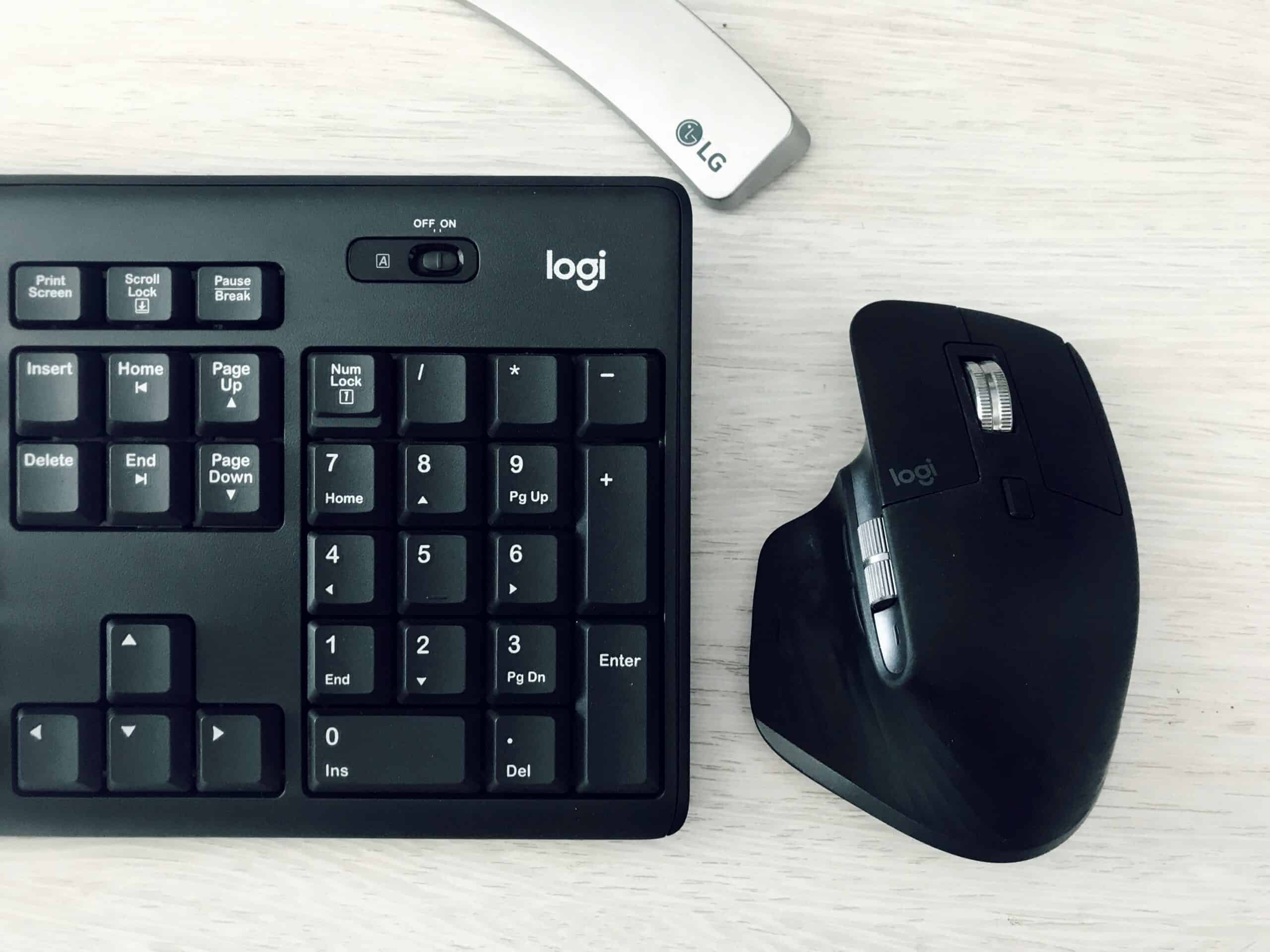
Your hands set the position of your shoulders, and your shoulders set the position of your neck. The best ergonomic keyboards and mice for neck tension work by letting your arms rest closer to your body, which is the part of a workstation most people never adjust. A chair and monitor can be perfect while a wide keyboard still pulls both shoulders outward all day.
That outward reach is the mechanism worth understanding. Reaching for a mouse to the right of a number pad rotates one shoulder forward and holds it there.
The rest of the station matters too. Our guide to creating a migraine-friendly workspace covers the pieces around the desk.
Medical Disclaimer
This article is general information about equipment and is not medical advice. Neck pain and headaches have many possible causes, some of which need assessment. Anyone with new, worsening, or severe symptoms should speak with a doctor rather than treating the problem as a furniture question.
The Short Version
A compact keyboard without a number pad brings the mouse closer and costs the least of any change here. Split keyboards go further by letting each hand sit at shoulder width, while vertical mice reduce forearm rotation. Trackballs and trackpads remove arm movement entirely, and a separate number pad keeps the functions you actually use.
Key Takeaways
- Keyboard width sets how far your mouse hand has to reach.
- A number pad you rarely use pushes the mouse out of reach all day.
- Split designs let each hand sit at natural shoulder width.
- Vertical mice reduce forearm rotation rather than wrist angle.
- Trackballs move the cursor without moving your arm.
- Every switch has an adjustment period before it feels normal.
How We Picked
We compared categories of input device rather than individual models, because product lines turn over while the underlying geometry stays fixed. Each section covers one format and the postural problem it addresses.
We ranked formats on four things: how much they reduce outward reach, how much they change forearm rotation, how long the adjustment period tends to be, and whether they suit shared or travel use.
We excluded anything sold on wrist-rest padding alone, since a pad supports a position rather than changing it. We have also not stated pain outcomes, because equipment is one variable among many.
Posture guidance here follows the general principles published by the National Institute for Occupational Safety and Health and by OSHA for computer workstations: elbows near the body, wrists straight rather than bent, and the monitor at or slightly below eye level. Those are the targets each format either helps or hinders.
1. Compact and Tenkeyless Keyboards
Why It Stands Out
Removing the number pad shortens the keyboard by a considerable margin, and the mouse moves inward by exactly that much. This is the cheapest meaningful change available.
A narrower board also lets you center the letter keys on your body rather than on the desk. Most people are surprised how far off center they had been sitting.
Worth Knowing
Anyone entering numbers in volume will miss the pad immediately. A separate pad placed on the left side solves that without giving back the width.
Compact layouts also move arrow keys and function keys onto layers. Learning the new positions takes a few days of slower typing.
Key feel varies widely across compact boards, from low-profile scissor switches to full mechanical. That choice affects noise more than posture, which matters in a shared room.
Best for: Almost everyone, as the first change to make. Skip it only if heavy numeric entry is central to your work.
Check Price on Amazon2. Split and Separated Keyboards
Why It Stands Out
A split keyboard lets each half sit directly in front of each shoulder, which removes the inward angling of the wrists entirely. For broad shoulders this is the only layout that genuinely fits.
Fully separated halves also let the mouse sit between them if you prefer. That puts the cursor hand at the body midline.
Worth Knowing
The adjustment period is the longest of any option here, because the hand separation changes which fingers reach which keys. Typing speed drops before it recovers.
Split boards also cost the most and travel poorly. Two halves plus a cable is awkward in a bag.
Some models tent upward in the middle, which reduces forearm rotation as well as reach. That combination pairs naturally with a properly set ergonomic chair.
Best for: Full-time desk work, broad shoulders, and persistent shoulder tension. Skip it if you type on several machines or travel constantly.
Check Price on Amazon3. Vertical and Angled Mice
Why It Stands Out
A vertical mouse holds the hand in a handshake position instead of flat, which removes most of the forearm rotation a standard mouse requires. The shoulder settles lower as a result.
Angled designs sit between the two, offering part of the benefit with a shorter learning curve. Both keep the wrist straighter.
Worth Knowing
Precision work takes practice in the new orientation, and fine cursor control suffers at first. Designers and editors notice this most.
Hand size matters more here than with flat mice, since your fingers wrap around the shell. A poor size fit undoes the benefit.
Vertical mice are also almost all right-handed or left-handed specific. Shared desks need two, which is worth checking before buying.
Best for: Forearm and shoulder tension from long mouse sessions. Skip it if your work depends on immediate pixel precision.
Check Price on Amazon4. Trackballs
Why It Stands Out
A trackball stays still while your thumb or fingers move the cursor, so the arm and shoulder stop moving altogether. For anyone whose tension follows repeated mouse movement, that is the largest single change.
The device also needs very little desk space. A cramped or shared desk suits it well.
Worth Knowing
Thumb-operated and finger-operated versions feel completely different, and people rarely like both. Thumb models are easier to adopt and work the thumb harder.
Balls collect skin oil and dust, so they need occasional cleaning to roll smoothly. That maintenance is minor but real.
Fast, large cursor movements take longer than with a mouse. Gaming and detailed drawing are the weakest fits.
Best for: Repetitive mouse movement, small desks, and shoulder tension specifically. Skip it for precision drawing or fast-paced gaming.
Check Price on Amazon5. External Trackpads and Touch Surfaces
Why It Stands Out
A trackpad sits directly in front of the keyboard, which keeps both hands at the body midline with no outward reach at all. Gesture support also replaces several clicks with one motion.
Placing it centrally means either hand can drive it. That alternation spreads load between sides.
Worth Knowing
Sustained fine control is harder than with a mouse, and pressure-clicking repeatedly can tire the finger. Long editing sessions expose that.
Gesture behavior also depends heavily on the operating system. Support is uneven outside the platform the pad was built for.
A trackpad works best as a second pointer rather than the only one. Many people alternate it with a trackball through the day.
Best for: Alternating between pointing devices and keeping hands centered. Skip it as a sole pointer for precision work.
Check Price on Amazon6. Separate Number Pads and Programmable Keypads
Why It Stands Out
A detached pad lets you keep numeric entry without paying for it in keyboard width all day. Place it on the left and the mouse stays close on the right.
Programmable versions also absorb shortcuts, which cuts awkward two-hand key combinations. Fewer stretches across the board means fewer small reaches.
Worth Knowing
It is another item on the desk, and a cluttered surface creates its own reaching problems. Wireless versions need charging or batteries.
Left-hand numeric entry feels wrong for a while if you learned it on the right. Most people adapt within a week.
Programmable pads need setup time to earn their place. Mapping the shortcuts you genuinely repeat is the useful part.
Best for: Accountants, data entry, and anyone who wants shortcuts off the main board. Skip it if desk space is already tight.
Check Price on AmazonErgonomic Keyboards and Mice at a Glance
| Format | Reduces reach | Reduces rotation | Adjustment period | Best situation |
|---|---|---|---|---|
| Compact keyboard | Yes, considerably | No | Short | First change for most people |
| Split keyboard | Yes, most | Some models | Longest | Full-time desk work |
| Vertical mouse | No | Yes, most | Moderate | Forearm and shoulder tension |
| Trackball | Yes | Some | Moderate | Repetitive mouse movement |
| External trackpad | Yes, most | Some | Short | Alternating pointers |
| Separate number pad | Enables it | No | Short | Keeping numeric entry |
How to Choose Ergonomic Keyboards and Mice for Neck Tension
Where does your tension actually sit?
Shoulder and upper back tension points toward reach and keyboard width. Forearm and wrist symptoms point toward rotation and mouse shape.
Matching the fix to the location avoids buying the wrong thing. Both can be true at once, which is why many people change the keyboard first.
How wide are your shoulders?
A standard keyboard is narrower than many people’s shoulder width, which angles both wrists inward. Split designs are the only layout that fully solves that.
Measure roughly from shoulder joint to shoulder joint and compare to your keyboard. The gap is usually informative.
Do you use the number pad?
Be honest rather than aspirational about this. A pad used occasionally costs you mouse distance every single day.
If you do need it, a detached pad gives both. That combination suits most spreadsheet users well.
How much precision does your work need?
Design, photo editing, and CAD work reward a conventional or angled mouse. Writing, coding, and general office work adapt to almost anything.
Precision-heavy users often keep two pointers. Alternating also breaks up repetition.
Can you tolerate an adjustment period?
Split keyboards and finger trackballs both slow you down before they help. Deadlines are the wrong moment to switch.
Start a change at a quiet point in the calendar. Give it longer than feels reasonable before judging it.
Does the rest of the station already fit?
New input devices cannot fix a monitor that sits too low or a chair without arm support. Those come first in the NIOSH and OSHA guidance.
Screen height and glare belong in the same review. Our guides to monitor light bars and anti-glare screen filters cover that side.
Keyboard Change vs Mouse Change
Where the keyboard change wins
It moves both shoulders at once, because narrowing the board changes where the mouse sits as well. One purchase addresses two hands.
The change is also cheaper and easier to adopt. A compact keyboard feels normal within days.
For tension across the upper back and base of the neck, this is the place to start. Reach is the dominant variable there.
Where the mouse change wins
It addresses rotation, which a keyboard cannot touch. Holding the forearm rolled flat for hours is its own load.
Mouse changes also help most when one side is clearly worse than the other. Asymmetry usually follows the pointing hand.
Posture support elsewhere still matters. Our guide to posture correctors covers what those can and cannot do, and whether posture causes migraines covers the broader question.
Common Workstation Mistakes to Avoid
Buying a wrist rest and calling it ergonomics
A rest supports whatever position you already hold, including a bad one. It does not change reach or rotation, which are the variables that matter here.
Keeping a number pad you never use
Those few inches push your mouse hand outward for every hour of every day. Removing them is the cheapest change on this list.
Switching several things at once
Changing keyboard, mouse, and chair together makes it impossible to tell what helped. Change one, give it time, then reassess.
Ignoring the monitor while fixing the hands
A low screen pulls the head forward regardless of how good the keyboard is. Screen height and lighting sit alongside this, which is why home office lighting belongs in the same review.
Treating equipment as the whole answer
Breaks, movement, and workload all shape how a station feels by the afternoon. Equipment removes load rather than removing the need to move.
Recommended Reading
- Standing desks cover changing position through the day.
- Desk footrests cover the base of a seated posture.
- Anti-fatigue mats cover the standing half of a sit-stand setup.
- Whether eye strain can cause migraines covers the screen side of desk work.
- Handling a migraine at work when you cannot leave covers the harder days.
Frequently Asked Questions
What are the best ergonomic keyboards and mice for neck tension?
A compact or tenkeyless keyboard paired with either a vertical mouse or a trackball covers most cases. The keyboard reduces how far your mouse hand reaches, and the pointer choice reduces forearm rotation, which are two different problems.
Can a keyboard really affect neck tension?
Indirectly, through shoulder position. A wide keyboard pushes the mouse further out, which holds one shoulder rotated forward for hours, and shoulder position influences how the neck loads.
Are split keyboards worth the adjustment?
For full-time desk work and broad shoulders, many people find they are. The adjustment period is the longest of any option here, so start during a quiet stretch rather than a busy one.
Is a vertical mouse better than a trackball?
They solve different things. A vertical mouse reduces forearm rotation while you still move your arm, and a trackball keeps your arm still while your fingers or thumb do the work.
Do wrist rests help?
They support a position rather than improve it. Useful as a comfort item, they do not change the reach and rotation that drive shoulder and neck load.
How long before a new keyboard feels normal?
Compact layouts usually settle quickly, while split boards and finger trackballs take substantially longer. Expect slower typing at first and judge the change only after it stops feeling novel.
Should I change my keyboard or my monitor first?
Monitor height first, since a low screen pulls the head forward no matter what your hands are doing. NIOSH and OSHA workstation guidance both put screen height and neutral arm position together.
When should I see a doctor about neck tension and headaches?
See a doctor if headaches are new, changing in pattern, getting more frequent, or accompanied by numbness, weakness, or visual changes. Equipment is worth adjusting, and it is not a substitute for finding out what is actually causing the pain.
Sources
- National Institute for Occupational Safety and Health. Computer Workstations and Ergonomics. Centers for Disease Control and Prevention. https://www.cdc.gov/niosh/
- Occupational Safety and Health Administration. Computer Workstations eTool. United States Department of Labor. https://www.osha.gov/etools/computer-workstations
- National Institute of Neurological Disorders and Stroke. Migraine. National Institutes of Health. https://www.ninds.nih.gov/health-information/disorders/migraine
- American Migraine Foundation. Migraine Triggers. https://americanmigrainefoundation.org/
